5:19 AM

Computer Tips From A Computer Guy |

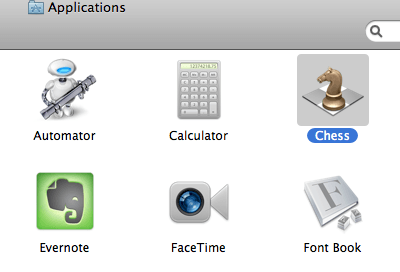
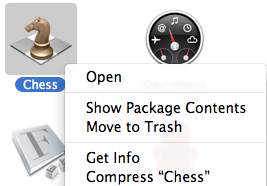
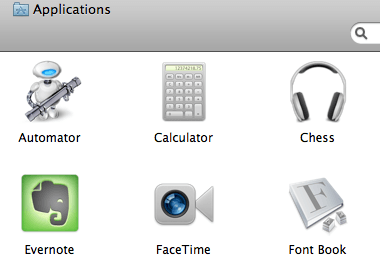
| Change Application Icons in Mac OS X Posted: 03 Jan 2011 03:51 AM PST Before I bought a Mac laptop a year ago, I was always a hardcore PC user. One of the things I like about Windows is that you can customize everything pretty easily. Whether it be the desktop, folders, applications, you can pretty much customize anything. Even though I love using OS X, it is a little annoying to figure out how to customize aspects of the operating system. One fine example of this is trying to change the application icons for programs in OS X. In Windows, you can right-click on an application icon and click the Change Icon button! Pretty simple! In OS X, changing the icons for programs is pretty unintuitive. In this post, I am going to walk you through the steps to change your Mac icons in OS X. Note that you can change the icons for applications, folders, files and even disk drives. Basically, how it works in OS X is that you can change the icon for a program, folder, or file by copying a different icon and then pasting it over the current icon that you don’t want anymore. Overall, it’s fairly simple, it’s just not something you would ever think of on your own! So let’s say I want to randomly replace the Chess application icon with something I downloaded from the Internet, in my case a pair of headphones!
Obviously, this is just random, but it is to illustrate the procedure. So in order to replace the default chess icon with these headphones, we need to open Finder and go to the Applications folder where Chess is located. Then select it.
Now press Cmd + I or click on File and choose Get Info or simply right-click on the icon and choose Get Info.
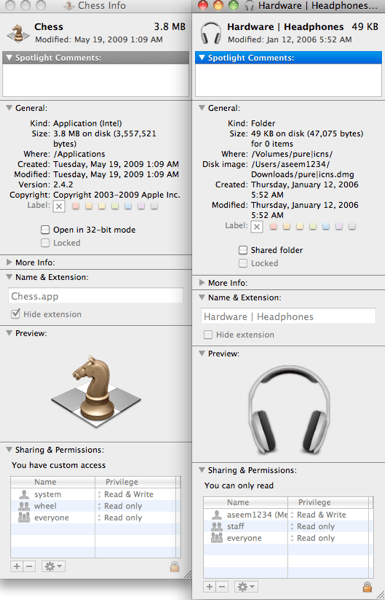
Once the Get Info window is open, do the same thing for the headphones icon. Now you should have both of the information screens open side by side. Note that you do not have to keep them both open if you don’t want to.
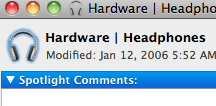
Now here’s where the fun begins! In order to replace the Chess icon, you have to click on the small version of the headphone icon at the very top left of the Get Info screen. Select it and then press Cmd + C.
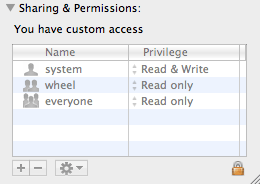
You should see that it is highlighted in blue when selected. Now go to the Get Info window for the Chess program and click on it’s icon at the top left. Now press Cmd + V to paste! What happened?!?! Expecting the icon to be replaced, but nothing happened? Yes, it’s a bit of a trick in OS X! There are some icons in OS X that you simply cannot just overwrite whenever you want! Those include all the applications that came installed on your Mac plus other programs like iTunes, iChat, iMovie, etc, etc. Before you can do the copy/paste trick, you have to unlock the icon you want to replace. In order to do this, you have to click the small lock icon at the bottom of the Get Info window:
When you click on the lock icon, you’ll be asked to enter the Administrator password for the computer. Go ahead and type it in and then the icon will be unlocked and the Sharing and Permissions section will not be greyed out.
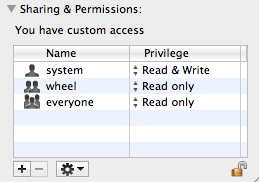
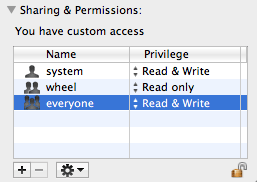
But you’re not done yet! Now you have to click on the drop down next to Everyone in the Sharing & Permission section and change it from Read Only to Read & Write.
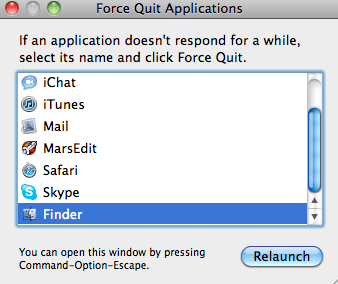
Now after all of this, you can perform the copy and paste of the icons and it will finally replace it! Copy the icon from the top left and select the top left Chess icon and paste. Whew! What a procedure! Also, note that if the icon is not changing to the new icon in Finder, you can press Cmd + Option + Esc and choose Finder and then click Relaunch. Then you should see the new icons displayed properly in Finder.
And now that I replaced my Chess program icon with a useless headphones icon, what do I do if I want to restore it back to the original system icon?
Well it’s pretty easy! Click on the program and then open the Get Info screen again. Again unlock the Get Info screen and give Everyone Read and Write permissions if it is not already set to that. Now select the icon and press Delete! Instantly, you’ll see the default system icon stored on your Mac appear! That is pretty much everything I know how changing icons in OS X on your Mac! Enjoy! If you want more Mac tips and tricks, check out my other blog Switching To Mac. It’s full of great OS X tips updated daily!
Related postsCopyright © 2007 Online Tech Tips. Aseem Kishore (digitalfingerprint: a59a56dce36427d83e23b501579944fcakmk1980 (74.125.94.83) ) Post from:
|


| You are subscribed to email updates from Online Tech Tips To stop receiving these emails, you may unsubscribe now. | Email delivery powered by Google |
| Google Inc., 20 West Kinzie, Chicago IL USA 60610 | |