Sunday, March 27, 2011

Computer Tips From A Computer Guy

Computer Tips From A Computer Guy


Copy File Names from Windows Explorer to a Text List

Posted: 27 Mar 2011 04:53 AM PDT

If you have a list of file names in a directory you want to copy to a spreadsheet or text document, normally you would copy and paste each name individually. However, you can easily copy all file names to a text document for free using the command prompt in Windows. No need to download other software.

Every Windows operating system lets you have access to the command prompt to run various commands. Why use other software, when you already have a useful directory printing tool installed?

Open Command Prompt

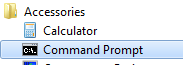
Go to Start and select All Programs. Choose Accessories and select Command Prompt. In Windows XP and earlier, you can also  go to Start, select Run and type cmd.exe. Press Enter to open the command prompt.

Command Prompt

If you have Windows Vista or higher, you may not be able to run the command prompt under your user name. If you have any problems with the remaining steps or opening the command prompt, close the command prompt (if open), right click Command Prompt within the Accessories menu and choose Run as administrator. This will let you correctly run command prompt commands.

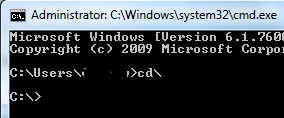
Type cd\ at the first prompt. This lets you change the directory.

Command Prompt cd

Next, type the following, but use the directory you want to print the file list for: dir c:\directory path /b >list.

Command Prompt List

Just a few things to keep in mind. Directory Path must be replaced with the full path name. For instance, to access something in your My Documents folder, you would use the following path: c:\users\username\my documents. Your list is saved under the main C:\ directory. You can open it by going to My Computer and double-clicking the C:\ drive. It should be listed near the end of the file list.

List

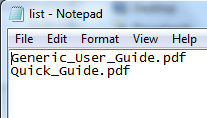
The final file should look similar to the following:

Final List

The file opens in Notepad, which is a universal program for text editing which is pre-installed on all Windows systems. The creates a compatible list that almost every system can open.

You can then copy the list to any other program. For instance, if you need the file list in Excel, press Ctrl plus A to select all file names. Press Ctrl plus C to copy the text. Open Excel and press Ctrl plus V to copy each name in a separate cell.

If you just want to print a list of all files and folders in a certain directory, you can use free software to create an HTML table or print the listing to a text file.


Copyright © 2007
Online Tech Tips.
Aseem Kishore (digitalfingerprint: a59a56dce36427d83e23b501579944fcakmk1980 (209.85.224.88) )

Post from:

Copy File Names from Windows Explorer to a Text List


Saturday, March 26, 2011

Computer Tips From A Computer Guy

Computer Tips From A Computer Guy


Create Your Own OpenOffice Writer Keyboard Shortcuts

Posted: 26 Mar 2011 04:39 AM PDT

Want to create your own custom OpenOffice Writer keyboard shortcuts? Take full control of OpenOffice Writer and your keyboard by creating your own keyboard shortcuts. You can assign new functions to existing shortcuts or create your own key combination. Either way, you select exactly what to press to perform specific tasks. This makes learning and remembering shortcuts much easier.

Customizing The Keyboard

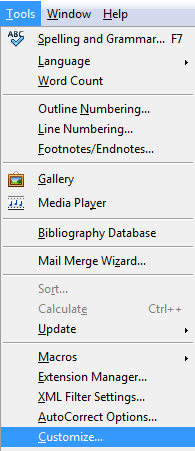
Open OpenOffice Writer. Go to Tools and select Customize.

Customize

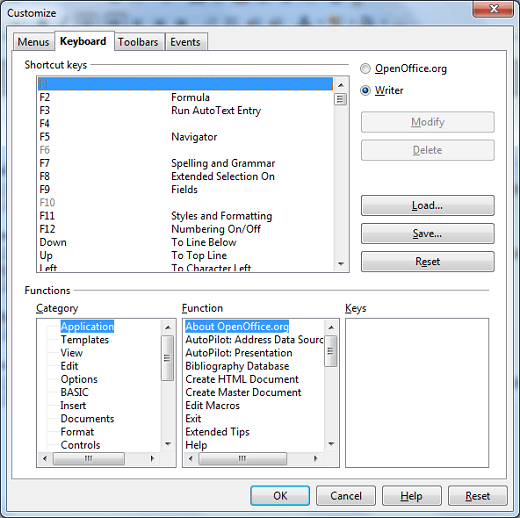
Choose the Keyboard tab.

Keyboard Tab

Select whether you want to the keyboard shortcut to apply just to Writer or to all of OpenOffice using the radio buttons at the top right. If you want to select a different program, you must access the Customize menu from that specific application.

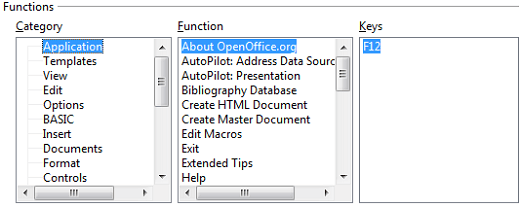
Current keyboard shortcuts are listed in the top section labeled Shortcut Keys. If you want to change an existing keyboard shortcut, select the shortcut from the list and choose either Modify (to edit) or Delete (to remove).  When you press Modify, the shortcut appears under the Keys section for editing.

Keys

Choose a category from the Category section for the shortcut to apply to. Next, choose a function from the Function section. Press OK to save your changes. If you do not want to make changes, press Cancel to reset the keyboard shortcut.

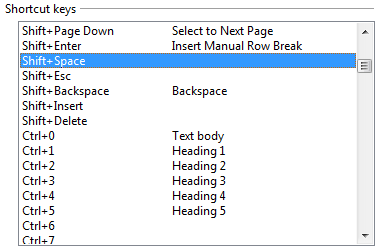
You can only select keyboard shortcuts from the Shortcut Keys section. However, if you notice, some of the keyboard shortcuts have no existing function. If you do not want to change existing shortcuts, use these shortcuts with no current function, such as Shift + Space.

Blank Shortcuts

When you change keyboard shortcuts or create your own, keep a list either on your computer or a notepad near your computer desk to help remind you of the shortcut. After all, what's the point of customizing your shortcuts if you don't remember or use them.

There are a select few of the shortcuts you cannot change. These are grayed out, such as F1, which is usually reserved by most programs as a quick way to access the Help menu.


Copyright © 2007
Online Tech Tips.
Aseem Kishore (digitalfingerprint: a59a56dce36427d83e23b501579944fcakmk1980 (209.85.224.80) )

Post from:

Create Your Own OpenOffice Writer Keyboard Shortcuts


How to Access and Use Google Body Browser

Posted: 25 Mar 2011 05:59 AM PDT

Google, the omnipresent search provider, launched, with very little fanfare, something called, Google Body Browser in December 2010; and has maintained its presence on the web, though has not updated it as yet, as promised.

The Google Body Browser is to the human body what Google Earth is, well, to planet Earth. It's a web application that allows the user to look very closely at the human body (currently just the female version) in great detail, in the same ways that Google Earth has allowed users to see different parts of the world.

Google Body Browser also has labels for different parts, and unlike Google Earth, allows the user to strip away parts of the body to see what lies beneath.

To access Google Body Browser, you first need to make sure you have a browser that is capable of handling this advanced app, e.g. one that supports WebGl, which only the newest versions of most browsers support. Next, you need to go to the Google Browser Site.

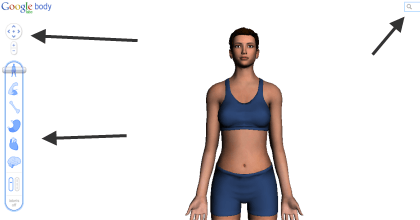
When it first loads, it looks like this:

Initial Screen

Note: On the left side of the screen are controls, in the center is the body to be viewed, and on the top right of the screen there is a search box.

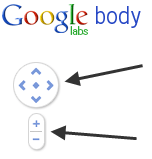
The controls are separated into two parts, the top part…

Top Controls

…is used to control the placement of the body. The up and down arrows move the body up and down in the viewing window. The left and right arrows case the body to spin left or right. The diamond in the middle causes the body to move back to its original position.

Zomed and Turned

Note: The up and down arrows also cause the body to spin towards or away from you if you keep pressing them after the body has been moved to the top or bottom of the viewing pane.

Added Note: You can also move the body around in the viewing pane by clicking on your mouse, holding the button down and moving your cursor around.

The "+" and "-" buttons allow you to zoom in or out.

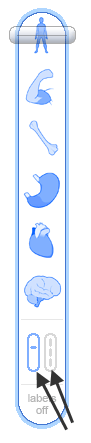
The bottom controls are used to view different parts of the body:

Bottom Controls

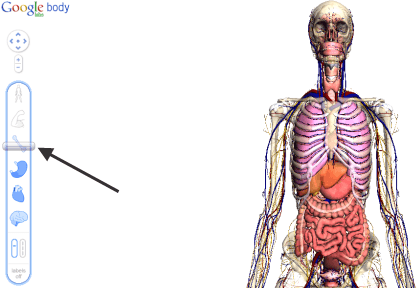
First note the vertical paddle. It controls what happens when you use the controls above them. The default is with the paddle on the left, which means that there is just one slider that you can slide down by clicking on and holding with your left mouse button while you move it lower or higher.

Moving down, you pass through the different types of body parts; from muscle to bone, organs, blood vessels, to the nerve system. As you pass through each system, the changes are reflected on the body in the viewing pane:

Slider Down

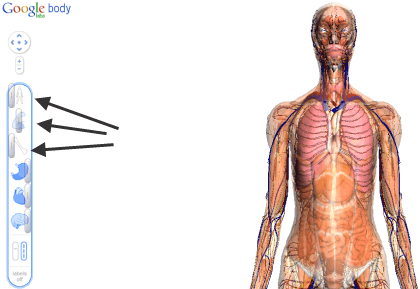
If you move the bottom paddle to the right, however, each system gets its own left and right slider that allows you to adjust how much of each system you wish to view; though you have to be aware that if you have an outer body part showing, you won't be able to see the parts underneath it.

Right Paddle

To get the best effects, it's best to start with the top slider, as moving left causes succeeding layers of the body to be peeled away, starting with the skin.

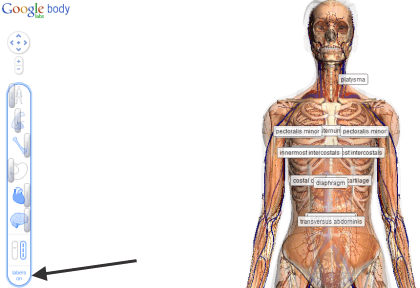
At the bottom of the controls is some text that says: Labels off. Clicking on it will cause body part labels to be turned on:

With Labels

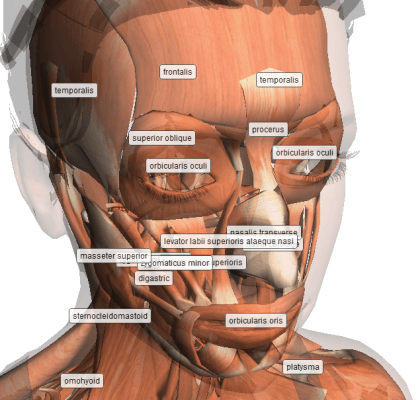
The labels that display correspond to the parts that you choose to reveal. Moving the body around in the viewing pane brings up labels that correspond to parts seen from that angle, as does zooming in.

Labels Closer

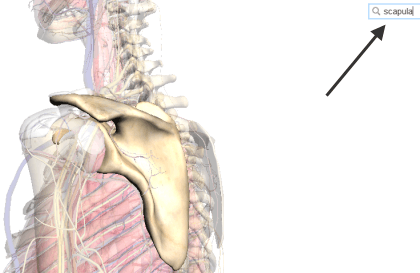
At the top right of the screen is the search box:

Scapula Search

Typing in a body part, causes the part you've searched for to be zoomed to and to be highlighted, as well as labeled, if labels are turned on.  The browser also shits the controls to create the best view of the part you've searched for.

Google Body Browser is a great tool for students and adults alike; whether learning for school, or just on your own, Body Browser allows you see the human body in ways you likely never have before.


Copyright © 2007
Online Tech Tips.
Aseem Kishore (digitalfingerprint: a59a56dce36427d83e23b501579944fcakmk1980 (209.85.224.80) )

Post from:

How to Access and Use Google Body Browser


Design by Free WordPress Themes | Bloggerized by Lasantha - Premium Blogger Themes | Justin Bieber, Gold Price in India